Downloading and installing TallyPrime or TallyPrime Edit Log on a laptop follows the same straightforward process for both versions. Users simply select their preferred version at the download stage.
Whether you are a new user, an existing user, or a student learning accounting, the steps below provide a complete walkthrough of the download and installation process.
Step 1 Visit the Tally Solutions UAE Website
Open your preferred web browser and go to https://tallysolutions-uae.com/.
From the top navigation menu, select the Download option in the header. This will direct you to the page where you can download the Tally software.

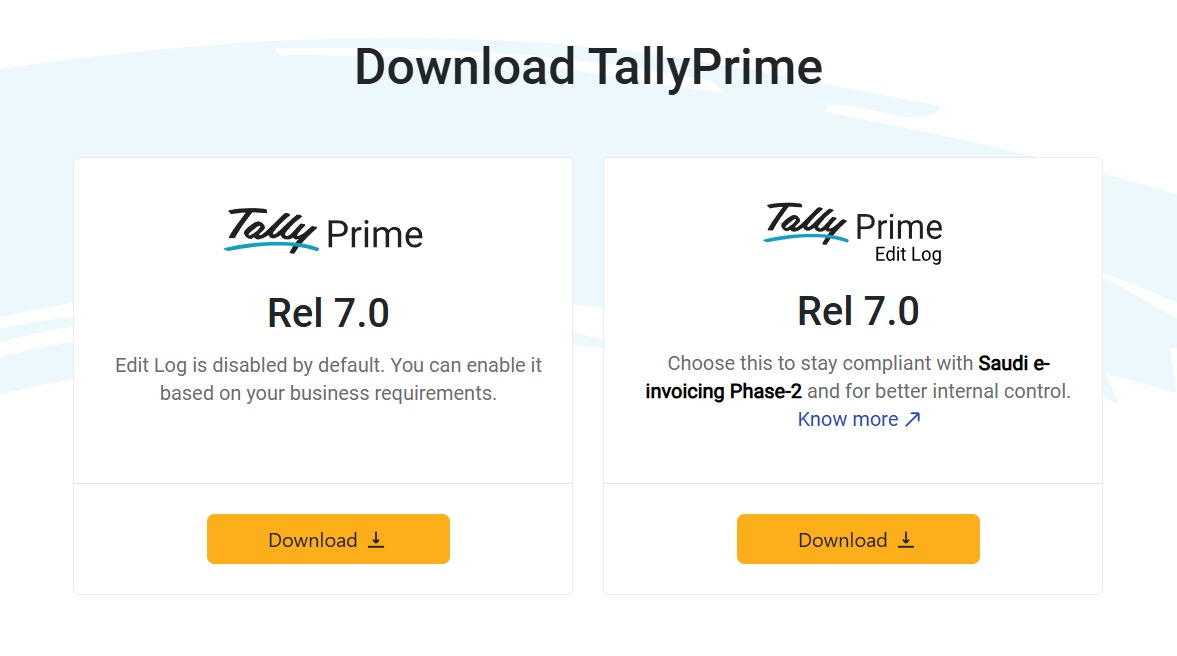
Step 2 Choose the Version You Want
On the download page, you will find options to download different versions of the software:
- TallyPrime
- TallyPrime Edit Log
Select the version that best matches your business requirements and click on it to proceed with the download.
Step 3 Select the User Type
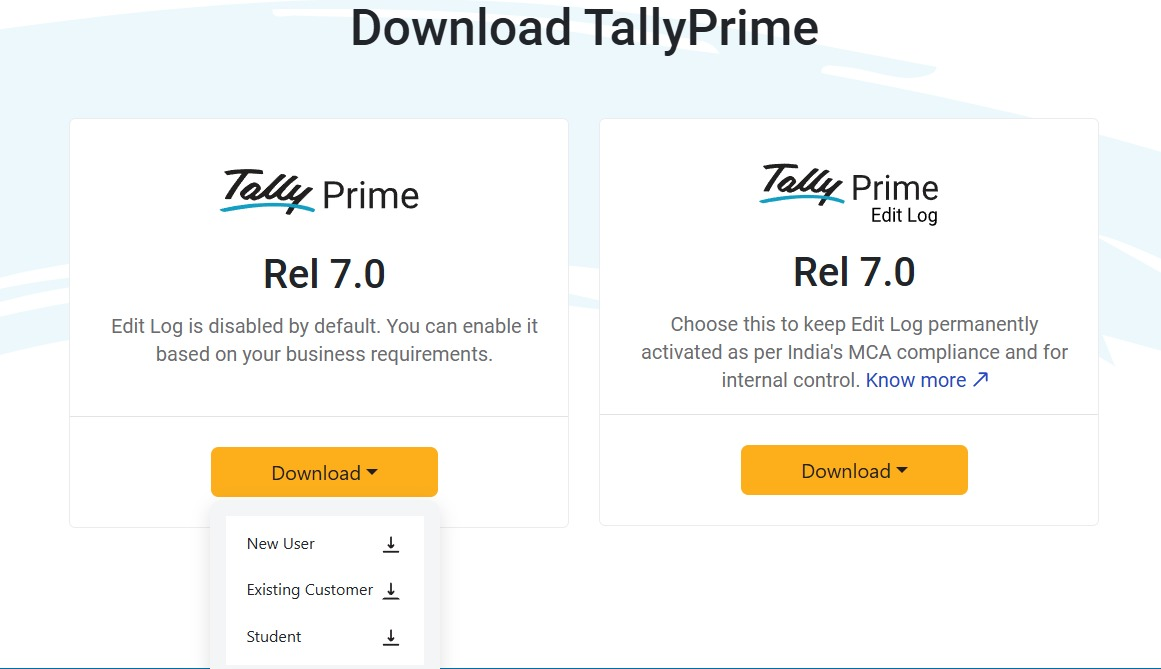
After selecting the version, you will see three download options:
- New User: Choose this if you are downloading TallyPrime for the first time.
- Existing User: Select this option if you already have a license and want to reinstall or update the software.
- Student: This option is for learners who want to use TallyPrime for educational or training purposes.
Select the option that best fits your situation to continue with the download.
Step 4 Click “More Actions” to Install
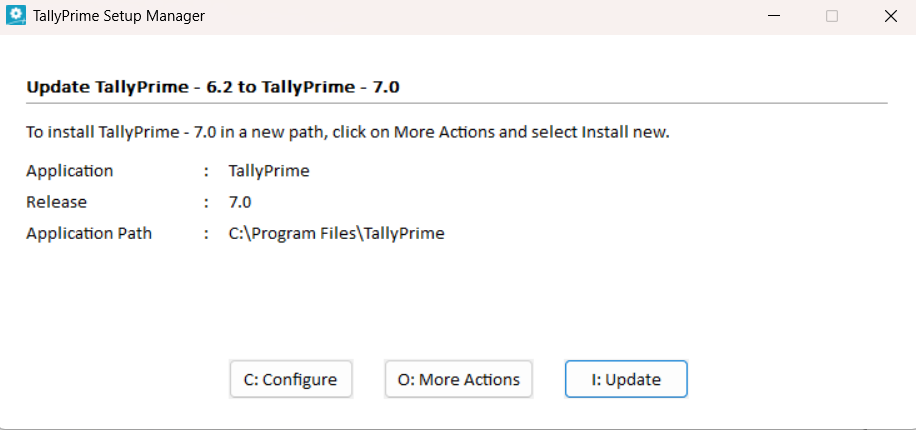
After selecting New User, you will see a More Actions button on the page.
Click More Actions, then choose Install to proceed with the installation process.
Step 5 Click the “Install New” Button
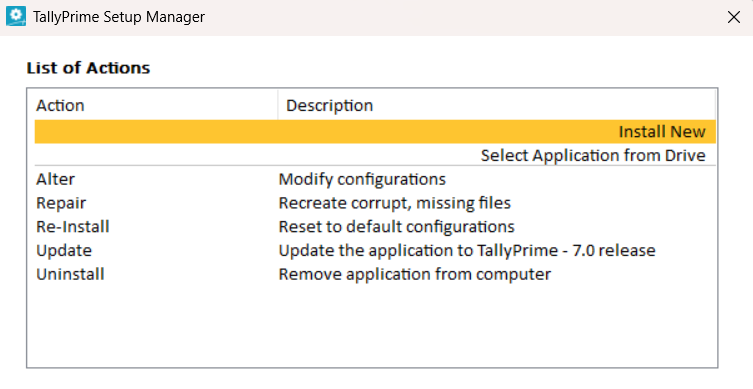
After opening the setup window, you will see the Install New option.
Click Install New to begin installing the software on your laptop.
Step 6 Allow the Installer to Run
When you open the setup file, Windows may display a User Account Control (UAC) prompt asking for permission to proceed.
Click Yes to allow the installer to make necessary changes to your system and continue with installation.
Step 7 Start the Installation
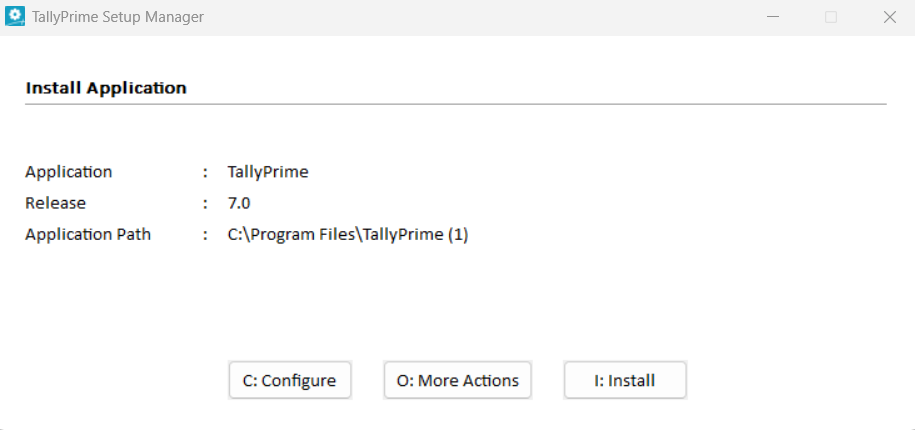
The TallyPrime Installation Manager will open on your screen.
Here you can review the installation settings. In most cases, the default settings are recommended.
Click Install to begin the installation.
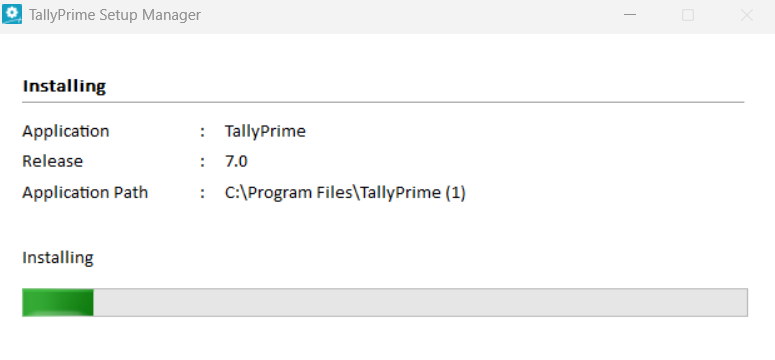
Step 8 Wait for the Installation to Complete
The installer will now copy the necessary files to your laptop.
This process usually takes only a few seconds. Once the installation is complete, you will see a confirmation message.
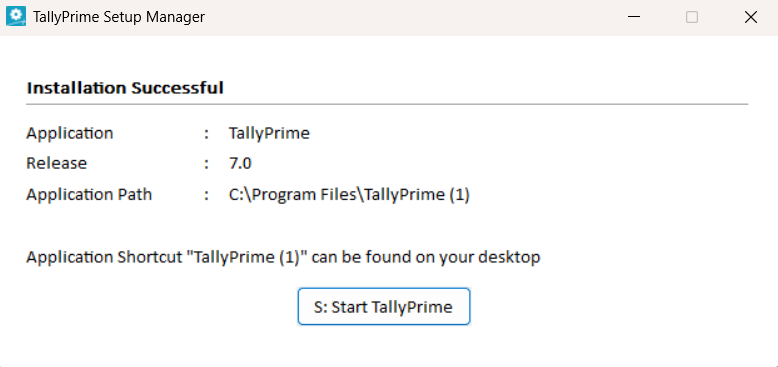
Step 9 Launch TallyPrime
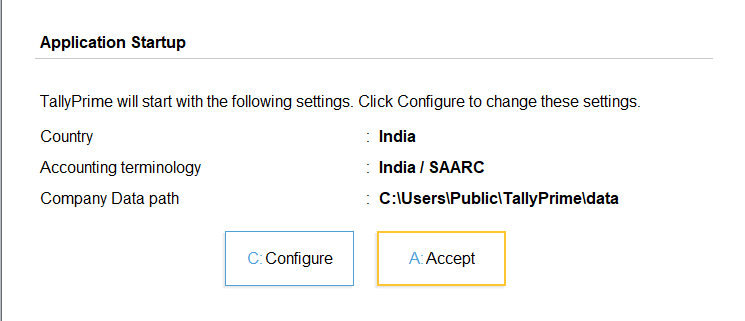
After installation, click Start TallyPrime or open the software from the desktop shortcut.
You can now:
- Activate your TallyPrime license
- Use the software in Educational Mode
- Connect your existing license
What Is the Difference Between TallyPrime and TallyPrime Edit Log?
Both TallyPrime and TallyPrime Edit Log follow the same download and installation process. The key difference lies in the additional compliance feature available in the Edit Log version.
TallyPrime is the standard version used for everyday business accounting, including features such as bookkeeping, inventory management, VAT invoicing, and financial reporting.
TallyPrime Edit Log, on the other hand, includes an audit trail (Edit Log) feature that automatically records any changes made to transactions. This allows businesses to track who modified an entry and when the change was made. The feature helps maintain transparency and ensures compliance with accounting and regulatory requirements.
Need Assistance in Installing or Activating TallyPrime?
Contact Our ExpertsStart Managing Your Business With Tally Prime
Downloading and installing TallyPrime or TallyPrime Edit Log on your laptop is a simple and quick process. By visiting the official download page, selecting the appropriate version that suits your requirements, and following the installation steps, you can setup the software easily. Once installed, you can start managing your accounting, financial reports and business operations efficiently with Tally Prime.
Frequently Asked Questions
1 Can I download Tally Prime for free on my laptop?
Yes. Tally Prime can be downloaded for free from the official website. After installation, you can use it in educational mode, which allows you to explore most features for learning and practice. A business that wants to use the software for commercial purposes must activate a valid Tally Prime license.
2 What are the special features of TallyPrime?
TallyPrime offers features like VAT-compliant invoicing, flexible purchase and sales management, multiple billing formats, multi-currency support, multiple price levels, payment QR codes on invoices, and support for multiple company and ledger addresses to simplify business accounting.
3 Can I install Tally Prime on multiple laptops?
Yes. Tally Prime can be installed on multiple laptops. However, the ability to use the software depends on the type of license you have. For example, a single-user license can be activated on one system at a time, while a multi-user license allows multiple users within the same network to access Tally Prime.
4 Is TallyPrime compatible with Windows laptops?
Yes. TallyPrime is designed to run on Windows operating systems, including Windows 10 and Windows 11. The software works smoothly on most laptops with standard system specifications and does not require high-end hardware.